WorkFlow tracks are used to organize the flow of items submitted through your campus portal’s FormFlow - Forms. Tracks can be used to set up approval or routing tracks for documents/forms and consist of stages, which are progressive points in time that submitted items follow. When a submission reaches a new stage, it means the requirements of the track rules or preceding stages have been met.
|
WorkFlow tracks are available in every instance the feature is available. For example, if your school has different areas of the campus portal with the FormFlow - Workflow feature on it, the tracks will be available in each instance. |
Workflows do not have to be sequential. You can set them up to go from Stage 1 to Stage 3 to Stage 5 and then back to Stage 2 using the Reroute and Change stage rule options. This can be helpful when you have different offices evaluating a document.
|
If your school has a transcript evaluation workflow set up, you can have a rule that either sends transcripts to a Graduate Admissions Office track or to an Undergraduate Admissions Office track based on the user input. |
You can also set up multiple workflow tracks for a form to process through at a time. When multiple approvers make changes to a document on more than one workflow, all changes are combined into the same submission.
|
You can set up employment application submissions to be routed to someone in your human resources department as well as the team lead for the department hiring. |
 |
To handle multiple documents, schools using custom queries referencing the WorkFlowID column must ensure they use the CF_SubmissionExtensionData DataKey, “WorkflowDocumentID” column. |
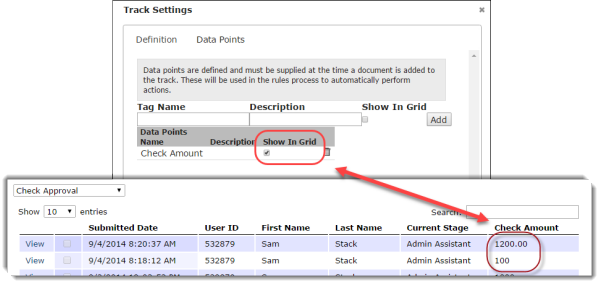
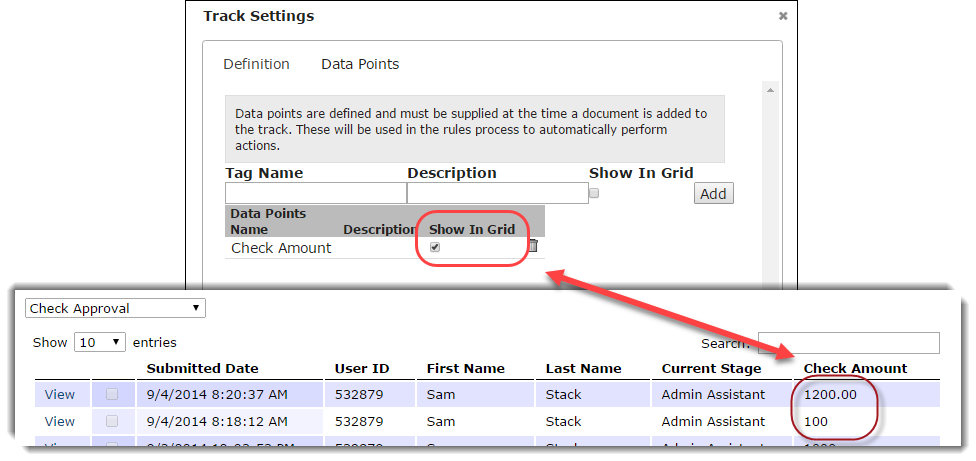
Add Data Points to a WorkFlow Track
Add a Stage to the WorkFlow Track
Configure FormFlow form for Workflow track